
Creating reports in Jaspersoft Studio
JasperWho? renders reports defined as .jrxml files — the native format of JasperReports. These files are designed in Jaspersoft Studio, a free desktop IDE built specifically for this purpose. This page explains how to set up a .jrxml file so that JasperWho? can analyse it correctly, register all its parts, and render it reliably.
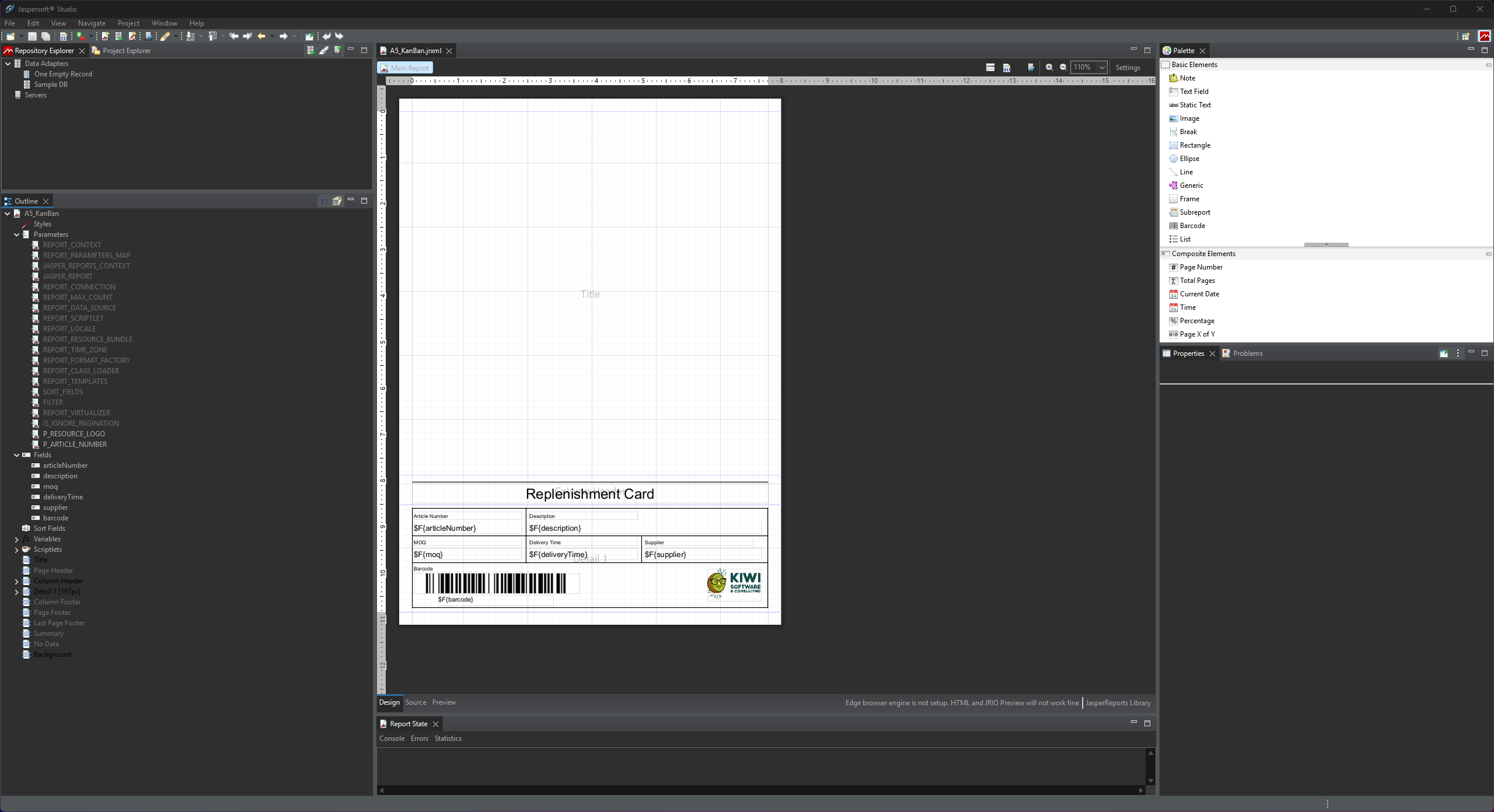
Jaspersoft Studio
Jaspersoft Studio is an Eclipse-based visual report designer. You use it to lay out the report template — define what data goes where on the page, how it is formatted, and which inputs the report expects. The resulting .jrxml file is then uploaded to JasperWho?, which takes over everything from there: storing it, analysing it, connecting it to a data source, and rendering it on demand.
The division of responsibilities between Jaspersoft Studio and JasperWho? is clear:
- Jaspersoft Studio defines the layout, the parameters, the fields, and the visual design of the report.
- JasperWho? manages the SQL query, the data connection, and the actual rendering at runtime.
This means you will see a <queryString> element in Jaspersoft Studio — but as explained below, you leave it empty. JasperWho? supplies the query separately.
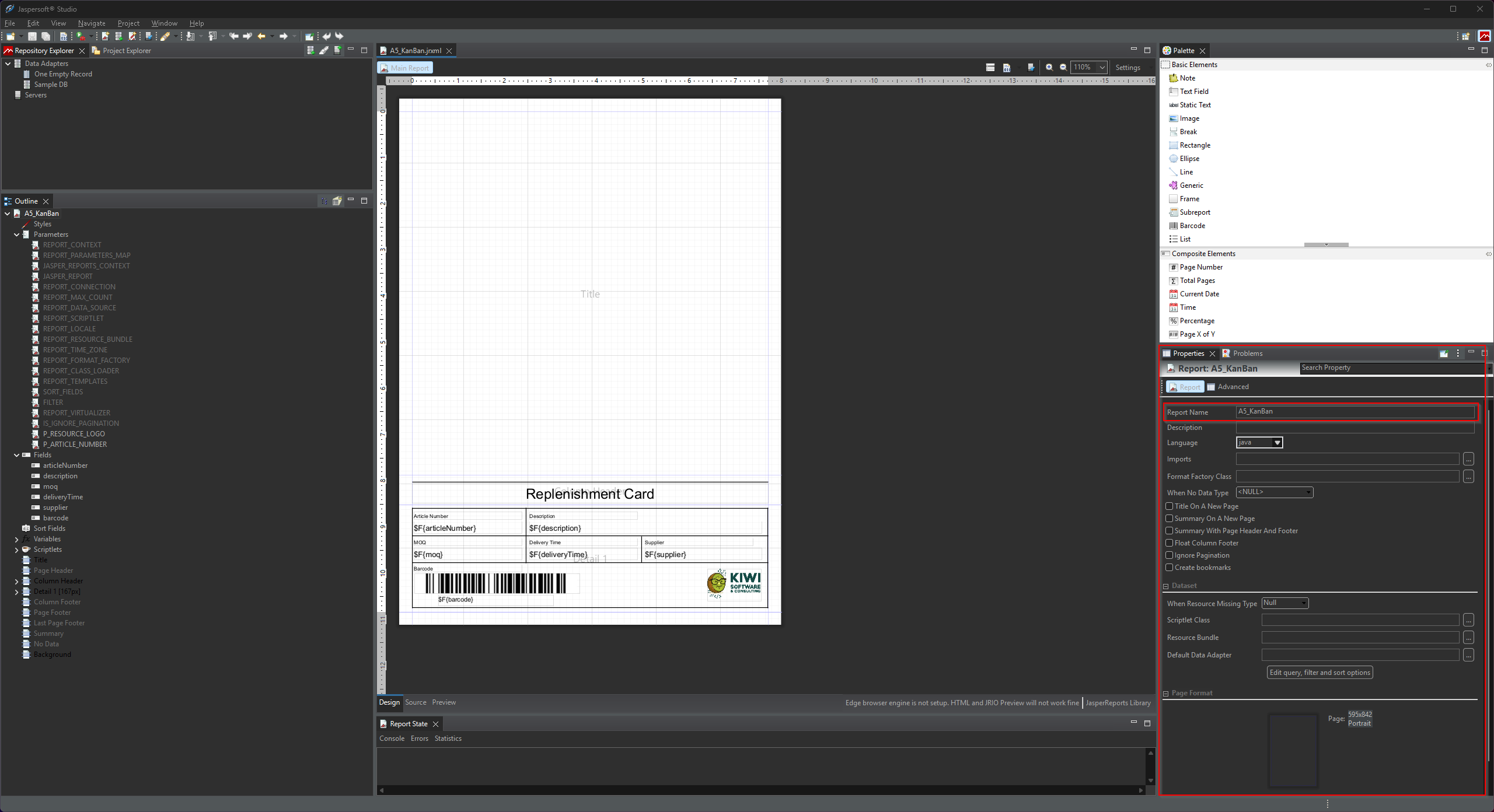
The Report Name
Every Jaspersoft Studio project has a Report Name — the name attribute on the root <jasperReport> element. This is not just a filename: JasperWho? reads it directly from the .jrxml on upload and stores it as report_name on the ReportConfig.
<jasperReport ... name="A5_KanBan" ...>
This name must be unique across all report configurations in JasperWho?. If you try to upload a .jrxml whose report name already exists, the upload will be rejected. The same applies to the file name itself.
Parameters
Parameters are input values passed into the report at render time. They are used inside the report layout via $P{PARAMETER_NAME} expressions — for example to display a customer name in the title, filter by a date range, or pass a document number into a barcode expression.
You define parameters in Jaspersoft Studio via the Report Inspector → Parameters section. Each parameter has a name and a Java data type.
Custom Properties: exampleValue and required
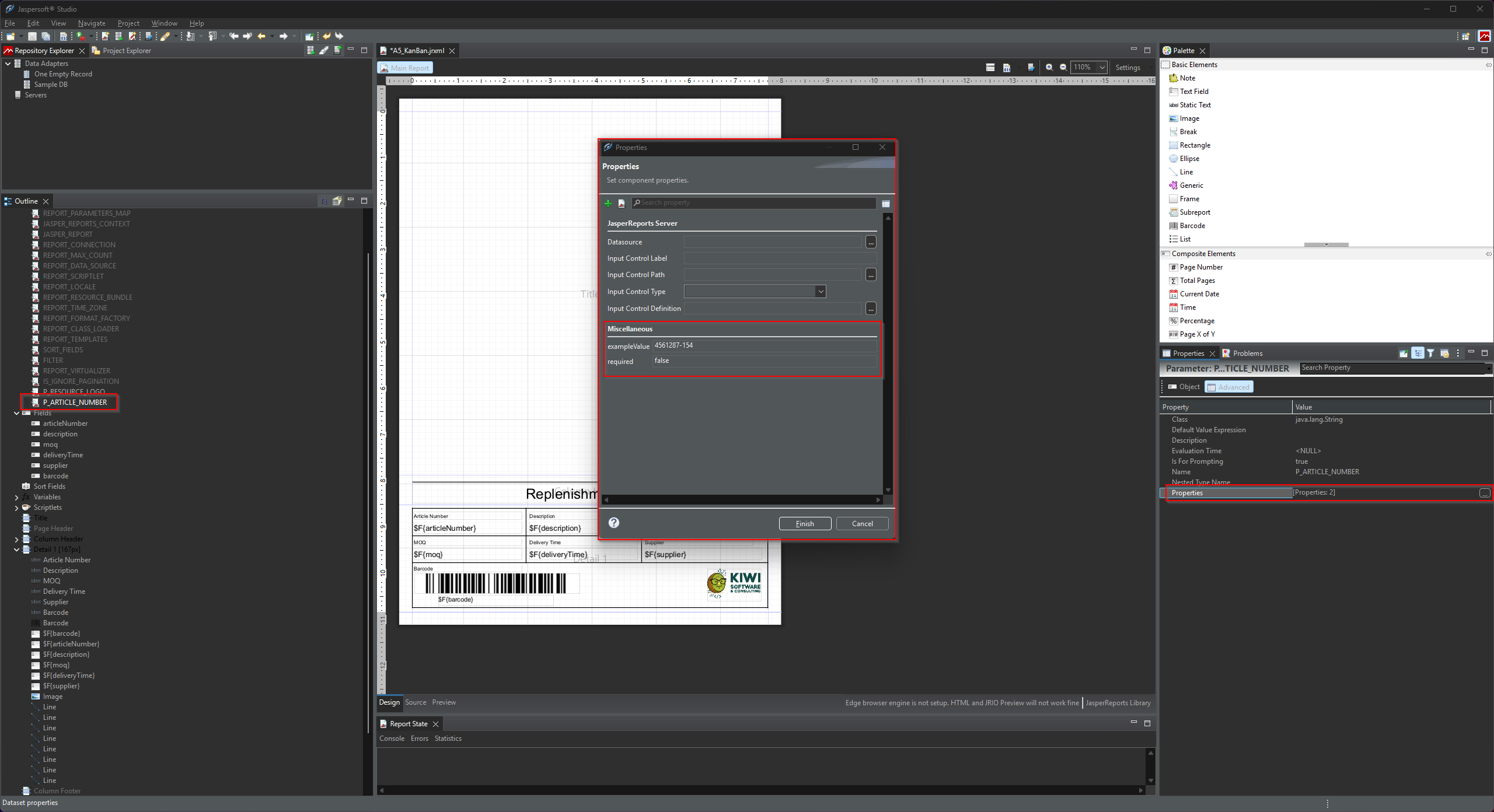
JasperWho? reads two custom properties from each parameter definition: exampleValue and required. These are not standard Jaspersoft features — they are custom <property> elements you add manually to the parameter in the .jrxml. JasperWho?'s analyser (JasperFunctions::analyzeReportFile) extracts them on upload.
| Property | Value type | Purpose |
|---|---|---|
exampleValue |
string | A representative value used when rendering a preview of the report without real data. Also pre-fills the parameter input in the frontend render form. |
required |
boolean (true / false) |
Whether this parameter must be provided in every render request. JasperWho? rejects render requests that are missing a required parameter. |
Both properties can also be set or updated manually in JasperWho? after upload — they do not have to come from the .jrxml. But embedding them in the file means they are automatically picked up every time the report is uploaded or re-uploaded.
To add these properties in Jaspersoft Studio, open the parameter in the Report Inspector, switch to the Properties panel, and add a new custom property via the green + button.
Supported Data Types
JasperWho? supports the following Java class types for parameters. The type determines how the input field is rendered in the frontend and how the value is handled at render time.
| Java class | Frontend input | Notes |
|---|---|---|
java.lang.String |
Text field | General-purpose text input |
java.lang.Boolean |
Toggle | Rendered as a checkbox/toggle switch |
java.lang.Short |
Integer input | Range: −32,768 to 32,767 |
java.lang.Integer |
Integer input | Range: −2,147,483,648 to 2,147,483,647 |
java.lang.Long |
Integer input | 64-bit integer |
java.lang.Float |
Decimal input | Single-precision floating point |
java.lang.Double |
Decimal input | Double-precision floating point |
java.math.BigDecimal |
Decimal input | Arbitrary-precision decimal; preferred for monetary values |
java.sql.Date |
Date picker | Date only (no time) |
java.util.Date |
Date picker | Date only (no time) |
java.sql.Time |
Time picker | Time only (HH:mm) |
java.sql.Timestamp |
Date + time picker | Combined date and time (datetime-local) |
Fields
Fields represent the data columns that populate the report's detail band — the repeating section that produces one row of output per data record. Each field corresponds to a column in the SQL query result (when using a live connection) or a key in the data array delivered at render time via the API.
You define fields in Jaspersoft Studio via the Report Inspector → Fields section. In the report layout, you reference them via $F{FIELD_NAME} expressions inside text fields in the detail band.
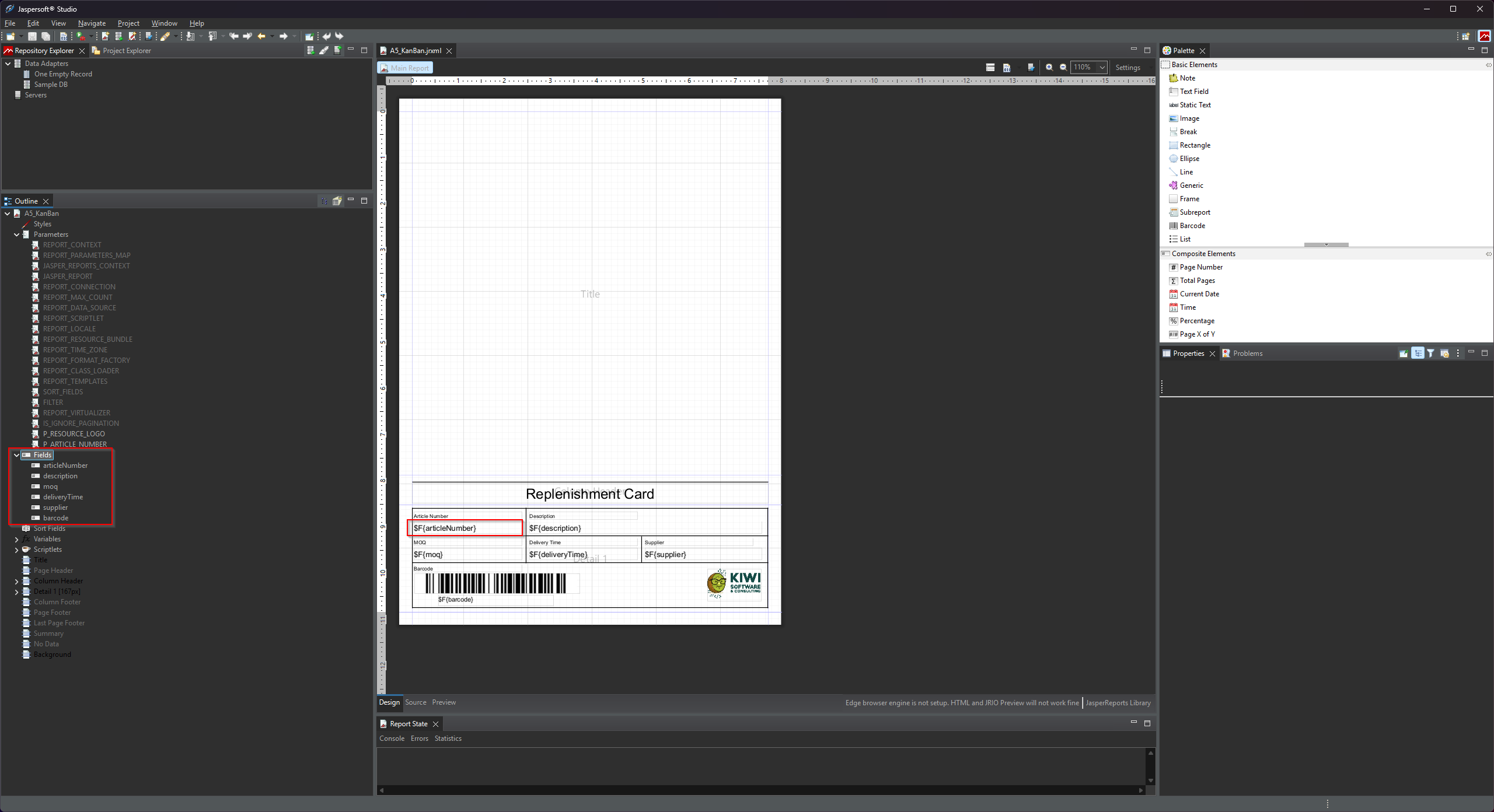
Custom Property: exampleValue
Fields support one custom property: exampleValue. It works the same way as for parameters — a representative value used when rendering a preview of the report without a live data connection. JasperWho? collects these example values and assembles a synthetic data row from them for preview rendering.
You add exampleValue to a field the same way as for parameters: open the field in the Report Inspector, go to the Properties tab, and add the custom property.
Fields support the same Java data types as parameters (see the table above). Use the type that matches the column type your SQL query or data array will produce.
Using Parameters as SQL Variables
When a ReportConfig has a ReportConnectionConfig assigned, JasperWho? executes the SQL query defined in the report configuration against that live database connection. Parameters passed in the render request are available as named bindings inside that query — using the standard :parameterName syntax from Laravel's Eloquent database layer.
This means you can reference any parameter directly in your SQL to filter, sort, or limit the result set:
SELECT
    article_number  AS articleNumber,
    description,
    moq,
    delivery_time   AS deliveryTime,
    supplier,
    barcode
FROM articles
WHERE article_number = :P_ARTICLE_NUMBER
In this example, :P_ARTICLE_NUMBER is replaced at query execution time with the value of the P_ARTICLE_NUMBER parameter from the render request. The binding is handled natively by PDO — values are passed as proper prepared statement parameters, not interpolated as strings.
:name placeholders before execution and silently drops any parameters that are not needed. Passing extra parameters in the render request will never cause a query error.
The parameter name in the query binding must match the parameter name exactly as defined in the .jrxml — including case. For example, a parameter named P_ARTICLE_NUMBER in the report must be referenced as :P_ARTICLE_NUMBER in the SQL query.
You can use as many parameters as needed across WHERE, ORDER BY, LIMIT, or any other clause that accepts a value binding. Note that named bindings cannot be used for identifiers like table or column names — only for values.
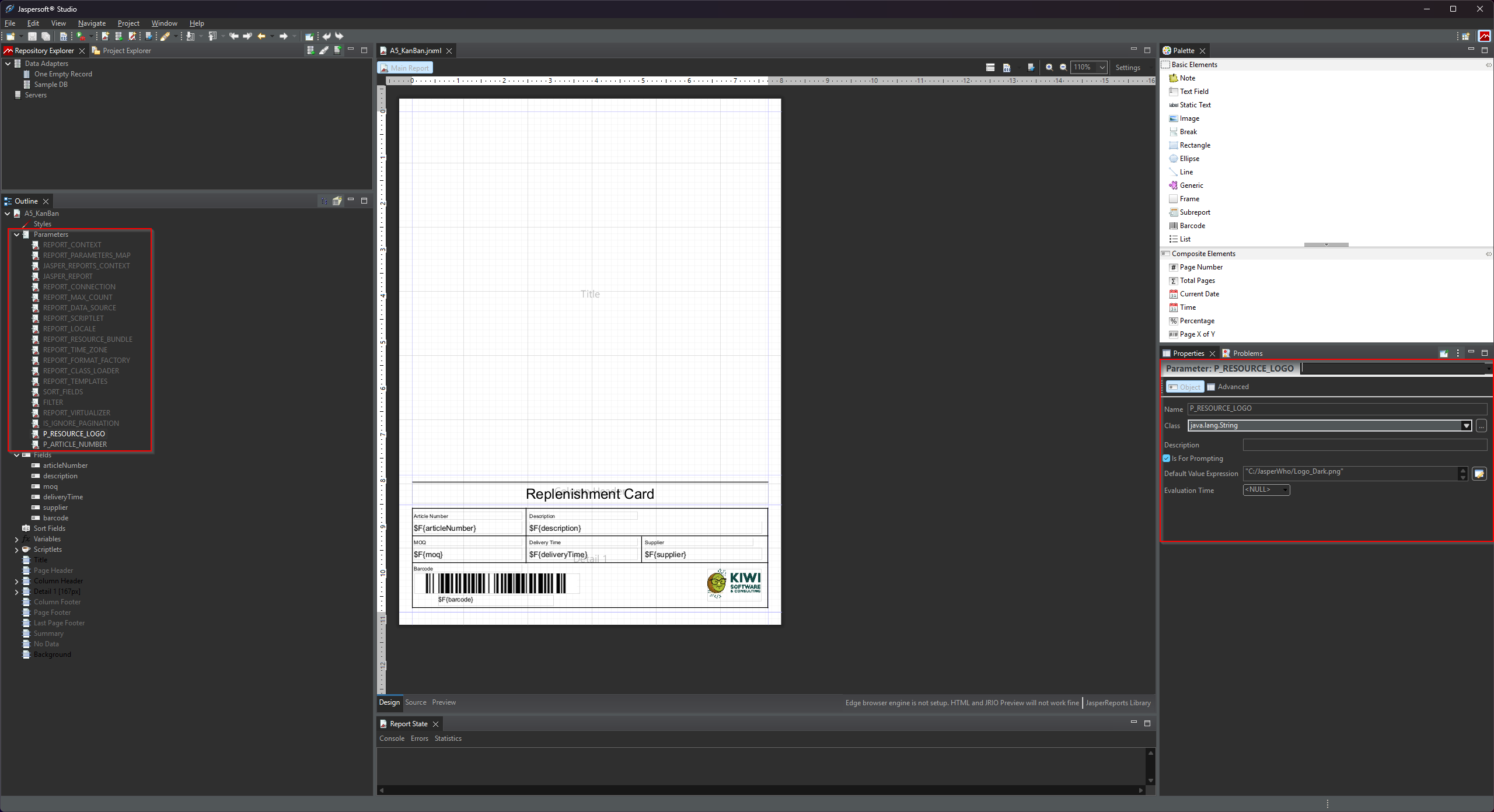
Resources (Images and Logos)
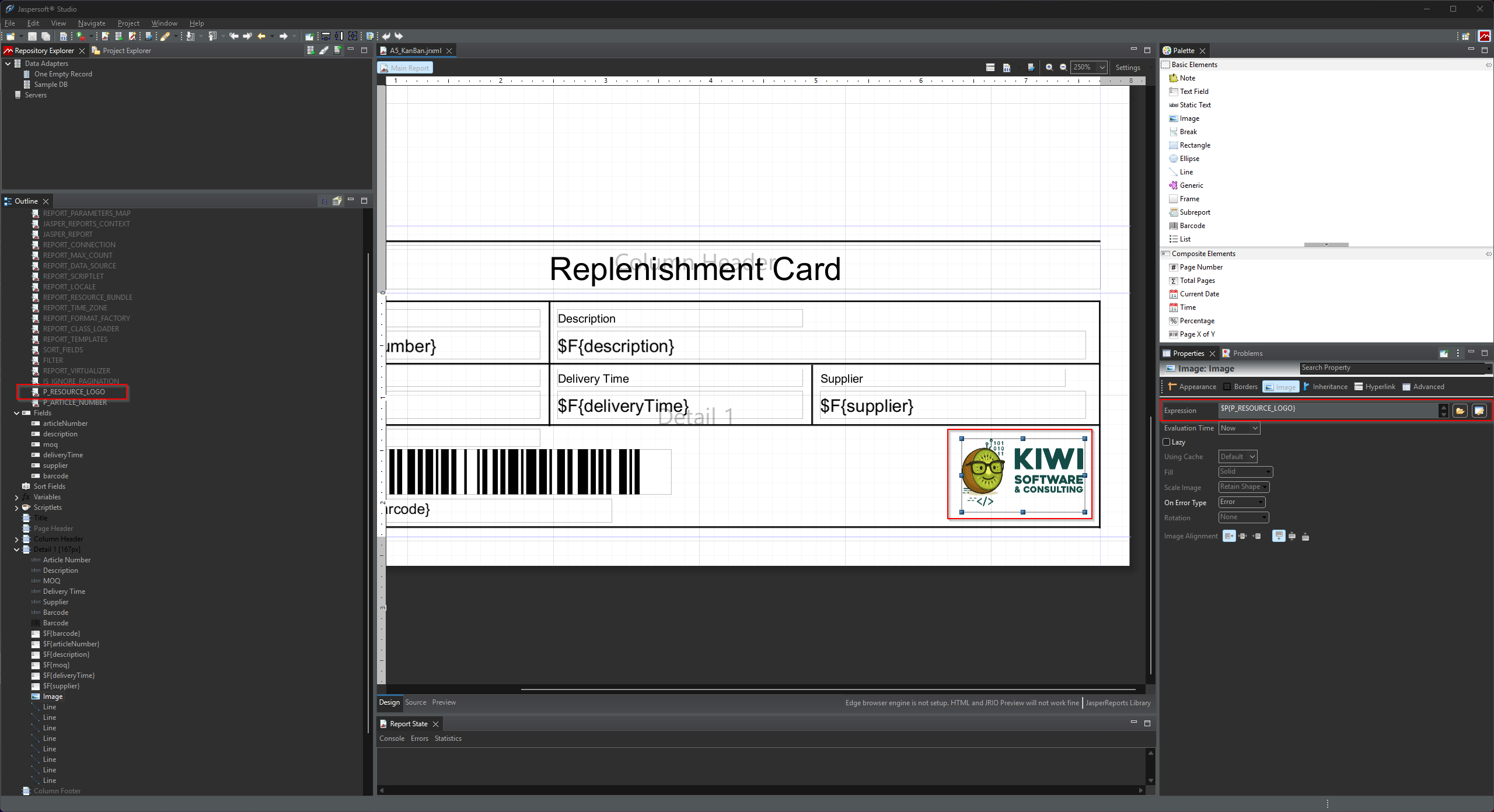
If your report contains images — a company logo, a header graphic, a product photo — these are defined as resource parameters in the .jrxml. JasperWho? detects them automatically on upload and creates a ReportResource record for each one.
The naming convention is strict: every resource parameter must start with P_RESOURCE_ and must have the Java class java.lang.String. At render time, JasperWho? replaces the parameter value with the actual file path of the uploaded image on the server.
<!-- Resource parameter: logo image -->
<parameter name="P_RESOURCE_LOGO" class="java.lang.String">
    <defaultValueExpression><![CDATA["C:/JasperWho/Logo_Dark.png"]]></defaultValueExpression>
</parameter>
In the report layout, you then bind this parameter to an image element:
<image>
    <reportElement x="460" y="100" width="84" height="50" uuid="..."/>
    <imageExpression><![CDATA[$P{P_RESOURCE_LOGO}]]></imageExpression>
</image>
The <defaultValueExpression> is used only in Jaspersoft Studio for design-time preview purposes. JasperWho? ignores it at render time — it always uses the uploaded file path instead. You can point it to a local file on your design machine.
After uploading the .jrxml, you must go to the Resources section of the report configuration in JasperWho? and upload the actual image file for each detected resource. A report cannot be rendered until all its resources have files assigned.
The Detail Band
The detail band is the repeating section of the report — the part that outputs one row per data record. If your report displays a list of items, a table, or any kind of repeating structure, it lives in the detail band.
JasperWho? checks whether a detail band is present when analysing the .jrxml:
- If a detail band exists, JasperWho? expects data to be provided at render time — either via a live SQL connection or via the
dataarray in the API request. - If no detail band exists, the report is treated as a static layout — no data is needed, only parameters.
$F{...}). A detail band that exists but displays no field data will be rejected on upload. JasperWho? uses the presence of text fields in the band as a basic integrity check.
Reports without a detail band are perfectly valid — they are useful for documents like cover pages, summary sheets, or any report whose content is entirely driven by parameters rather than repeated rows.
The SQL Query
Jaspersoft Studio has a built-in <queryString> element where you would normally write the SQL query for the report. In JasperWho?, this element is ignored. The SQL query is instead defined and stored directly in JasperWho? as part of the ReportConfig — not in the .jrxml file.
This means you should leave the <queryString> empty when creating a .jrxml for JasperWho?:
<queryString>
    <![CDATA[]]>
</queryString>
You write the actual SQL query in JasperWho? after uploading the report, in the Query field of the report configuration. This design keeps the query where it can be managed, versioned, and changed without touching the report template file.
The query result columns must match the field names you defined in the .jrxml. For example, if your report has a field named articleNumber, your SQL query must return a column called articleNumber.
The Data Adapter
Jaspersoft Studio uses Data Adapters to connect to a live database so you can preview your report during design. This is entirely a design-time feature — the data adapter you configure in Jaspersoft Studio has no effect in JasperWho? and is not stored in the .jrxml.
At render time, JasperWho? always uses its own internal array-based adapter to pass data to JasperReports. Whether that data comes from an SQL query executed against a ReportConnectionConfig or from a data array in the API request, JasperWho? always handles the data handoff itself.
You still benefit from configuring a data adapter in Jaspersoft Studio during development — it lets you see a realistic preview while designing the layout. Just be aware that the adapter configuration stays local to your machine.
Annotated Example
The following is a complete, minimal .jrxml that demonstrates everything discussed on this page. It is the actual A5_KanBan report included in the JasperWho? demo. Inline comments explain each relevant element.
<?xml version="1.0" encoding="UTF-8"?>
<!-- Created with Jaspersoft Studio version 6.21.5 -->

<jasperReport
    xmlns="http://jasperreports.sourceforge.net/jasperreports"
    xmlns:xsi="http://www.w3.org/2001/XMLSchema-instance"
    xsi:schemaLocation="..."

    name="A5_KanBan"         <!-- Report Name — becomes report_name in JasperWho?. Must be unique. -->
    pageWidth="595"          <!-- Page dimensions in Jasper pixels (1px = 1/72 inch).              -->
    pageHeight="842"         <!-- JasperWho? converts these to mm on upload.                       -->
    ...>


    <!-- ═══════════════════════════════════════════════════════════════════
         RESOURCE PARAMETER
         Name starts with P_RESOURCE_ and class is java.lang.String.
         JasperWho? detects this as a resource (image/logo), not a parameter.
         The defaultValueExpression points to a local file for Studio preview —
         JasperWho? replaces it at render time with the uploaded file path.
         ═══════════════════════════════════════════════════════════════════ -->
    <parameter name="P_RESOURCE_LOGO" class="java.lang.String">
        <defaultValueExpression><![CDATA["C:/JasperWho/Logo_Dark.png"]]></defaultValueExpression>
    </parameter>


    <!-- ═══════════════════════════════════════════════════════════════════
         REGULAR PARAMETER
         P_ARTICLE_NUMBER is a user-supplied input value passed at render time.
         exampleValue  → used for preview rendering and pre-fills the frontend form.
         required      → omitting this parameter in a render request will cause a 422 error.
         ═══════════════════════════════════════════════════════════════════ -->
    <parameter name="P_ARTICLE_NUMBER" class="java.lang.String">
        <property name="exampleValue" value="4561287-154"/>
        <property name="required"     value="true"/>
    </parameter>


    <!-- ═══════════════════════════════════════════════════════════════════
         QUERY STRING — leave empty.
         The SQL query is defined in JasperWho?, not here.
         ═══════════════════════════════════════════════════════════════════ -->
    <queryString>
        <![CDATA[]]>
    </queryString>


    <!-- ═══════════════════════════════════════════════════════════════════
         FIELDS
         Each field maps to a column in the SQL result or a key in the data array.
         exampleValue → used for preview rendering when no live data is available.
         ═══════════════════════════════════════════════════════════════════ -->
    <field name="articleNumber" class="java.lang.String">
        <property name="exampleValue" value="1868745-584"/>
    </field>

    <field name="description" class="java.lang.String">
        <property name="exampleValue" value="Packing Carton Size 1 - 200x150x50mm"/>
    </field>

    <field name="moq" class="java.lang.Integer">
        <property name="exampleValue" value="250"/>
    </field>

    <field name="deliveryTime" class="java.lang.String">
        <property name="exampleValue" value="3 Days"/>
    </field>

    <field name="supplier" class="java.lang.String">
        <property name="exampleValue" value="Ninghao Packaging"/>
    </field>

    <field name="barcode" class="java.lang.String">
        <property name="exampleValue" value="5698532145712"/>
    </field>


    <!-- ═══════════════════════════════════════════════════════════════════
         DETAIL BAND
         The repeating section — one iteration per data row.
         Must contain at least one <textField> using a $F{...} expression,
         otherwise JasperWho? rejects the file on upload.
         The image element uses $P{P_RESOURCE_LOGO} — JasperWho? resolves
         this to the uploaded resource file at render time.
         ═══════════════════════════════════════════════════════════════════ -->
    <detail>
        <band height="167" splitType="Stretch">

            <!-- Field values referenced via $F{...} expressions -->
            <textField>
                <textFieldExpression><![CDATA[$F{articleNumber}]]></textFieldExpression>
            </textField>

            <textField>
                <textFieldExpression><![CDATA[$F{description}]]></textFieldExpression>
            </textField>

            <!-- Resource image: bound to the P_RESOURCE_LOGO parameter -->
            <image>
                <imageExpression><![CDATA[$P{P_RESOURCE_LOGO}]]></imageExpression>
            </image>

        </band>
    </detail>

</jasperReport>
.jrxml contains many additional attributes, layout elements, and Studio-specific property annotations. The elements shown here are the ones JasperWho? actively reads and acts on — everything else is passed through to JasperReports as-is.
Pre-Upload Checklist
Before uploading a .jrxml to JasperWho?, verify the following:
- The Report Name (
nameattribute on<jasperReport>) is set, descriptive, and unique. - All resource parameters follow the
P_RESOURCE_naming convention and have classjava.lang.String. - All regular parameters have
exampleValueandrequiredcustom properties set where applicable. - All fields have an
exampleValuecustom property set. - The
<queryString>is empty — the SQL is managed in JasperWho?. - If the report has a detail band, it contains at least one
<textField>with a$F{...}expression. - The report previews correctly in Jaspersoft Studio using the local data adapter — this confirms the layout and expressions are valid before upload.
No comments to display
No comments to display